
How to Import Divi 5 Accordion Module JSON Layouts
File Structure
1 ) All-accordion-design-1-to-52.json file which contains all layouts or Individual layout JSON file
2 ) License.txt
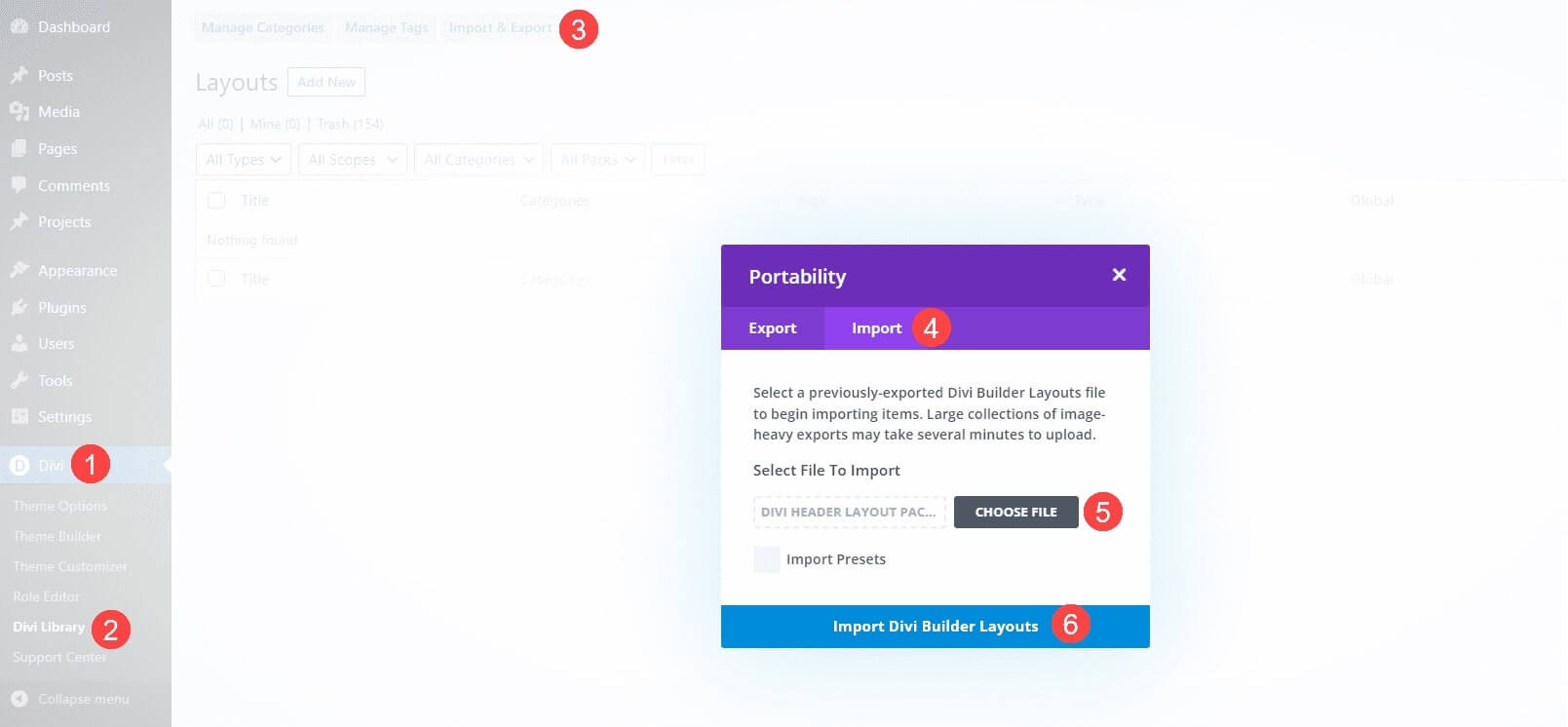
Step 1 - Importing Divi Layouts In Divi Library
1. Go to WordPress Dashboard ⇾ Divi
2. Divi ⇾ Divi Library
3. Click the Import & Export
4. Select the Import tab.
5. Choose an Individual layout JSON file or Select the All-accordion-design-1-to-52.json file (which contains all layouts).
6. Click on Import Divi Builder Layouts
Note : They’re labeled and named according to their categories, so they’re easy to identify.

Step 2 - Apply Divi Library Layouts to Your Page
2. Use the Divi Builder.
3. After choosing the Divi Builder option, it will display 3 choices. Select BUILD FROM SCRATCH.
4. Click the Blue Plus Icon to Add New Row and choose your preferred column layout.
5. Click the Gray Plus Icon to Add Module, then select the Accordion Module.
6. Inside the module settings, click Add From Library.
7. Locate your imported Accordion design and click the Use This Module button.
Note : All designs are saved as module-based layouts and are clearly labeled by category name, so they are easy to identify and use anywhere on your website.
Frequently Asked Questions
Problems importing the layout?
If the importing process stops at 100%, or you have another problem, please make sure that you deactivate security plugins like Word fence while importing. Then it should work fine.
YouTube Tutorials (Installation Guide)
Explore our Video Guides for In-Depth Divi Layout Customization & Installation

Customer Support
If you encounter any issues, please don’t hesitate to get in touch with us.
Technical Support – Submit A Ticket
Email Support – support@layoutdivi.com or layoutdivi@gmail.com
Custom Job Inquiry – layoutdivi@gmail.com